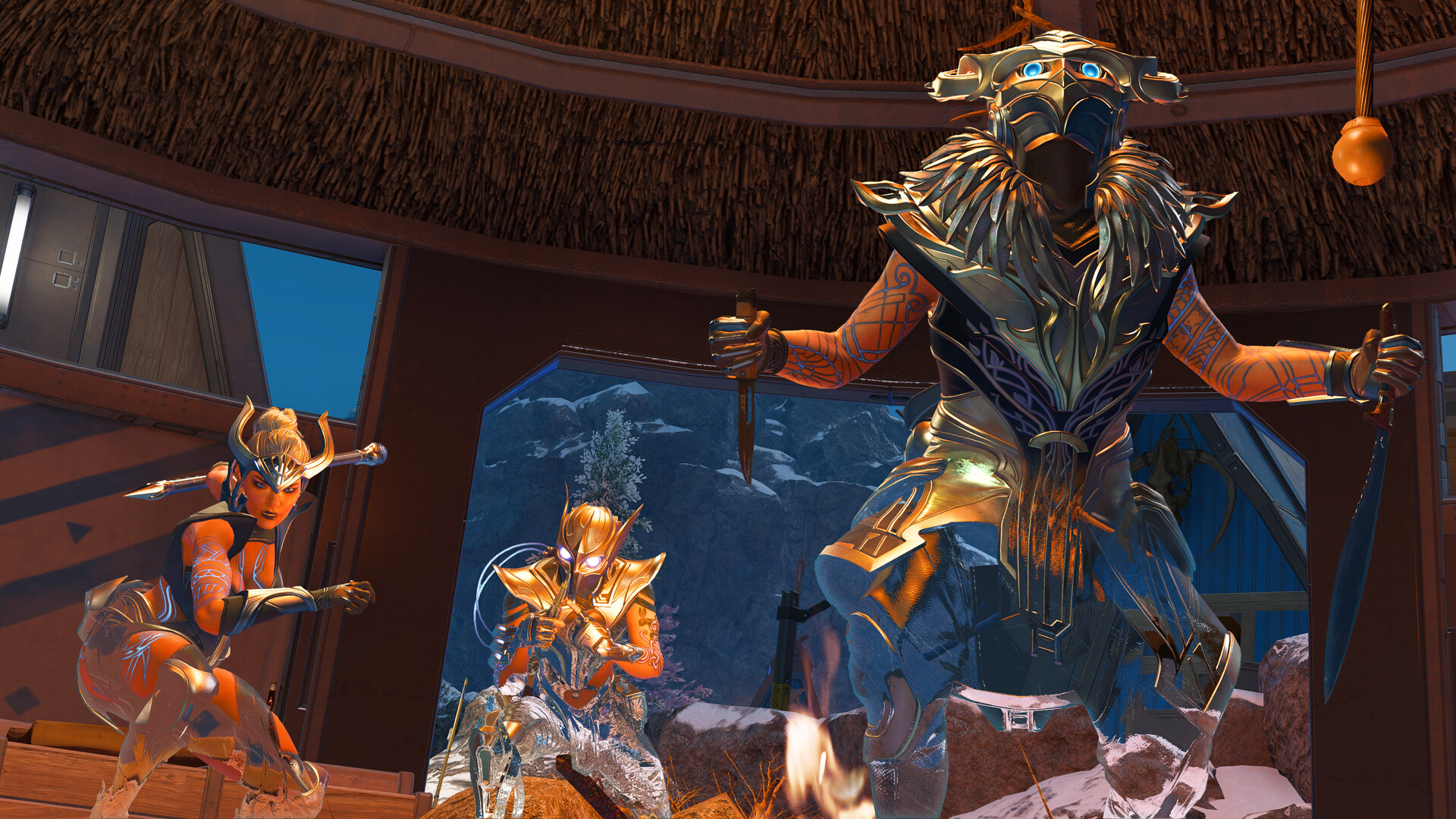
Ready up, Gamers! Whether you're tap-strafing across World's Edge, chaining wall bounces in Olympus, or holding down god-spot in final ring ranked lobbies, Apex Legends demands blistering responsiveness and pinpoint frametime pacing. Built on Respawn Entertainment’s heavily modified Source Engine, Apex rewards fast reflex aim—meaning any micro-stutters during intense Gibraltar bombardments or Bangalore rolling thunders can instantly cost you RP.
🏆 Test Your Apex Rig for 144Hz / 240Hz Performance
Wondering if your battle station can hold smooth framerates in contested hot drops and chaotic teamfights? Run our free interactive rig scanner to benchmark your setup in seconds:
TEST YOUR RIG WITH THE FPS TESTER →Official Apex Legends PC System Requirements
Here are Respawn's official minimum and recommended specifications. While these specs easily cover casual 1080p 60 FPS play, modern competitive lobbies and 144Hz+ monitors benefit from upgraded hardware:
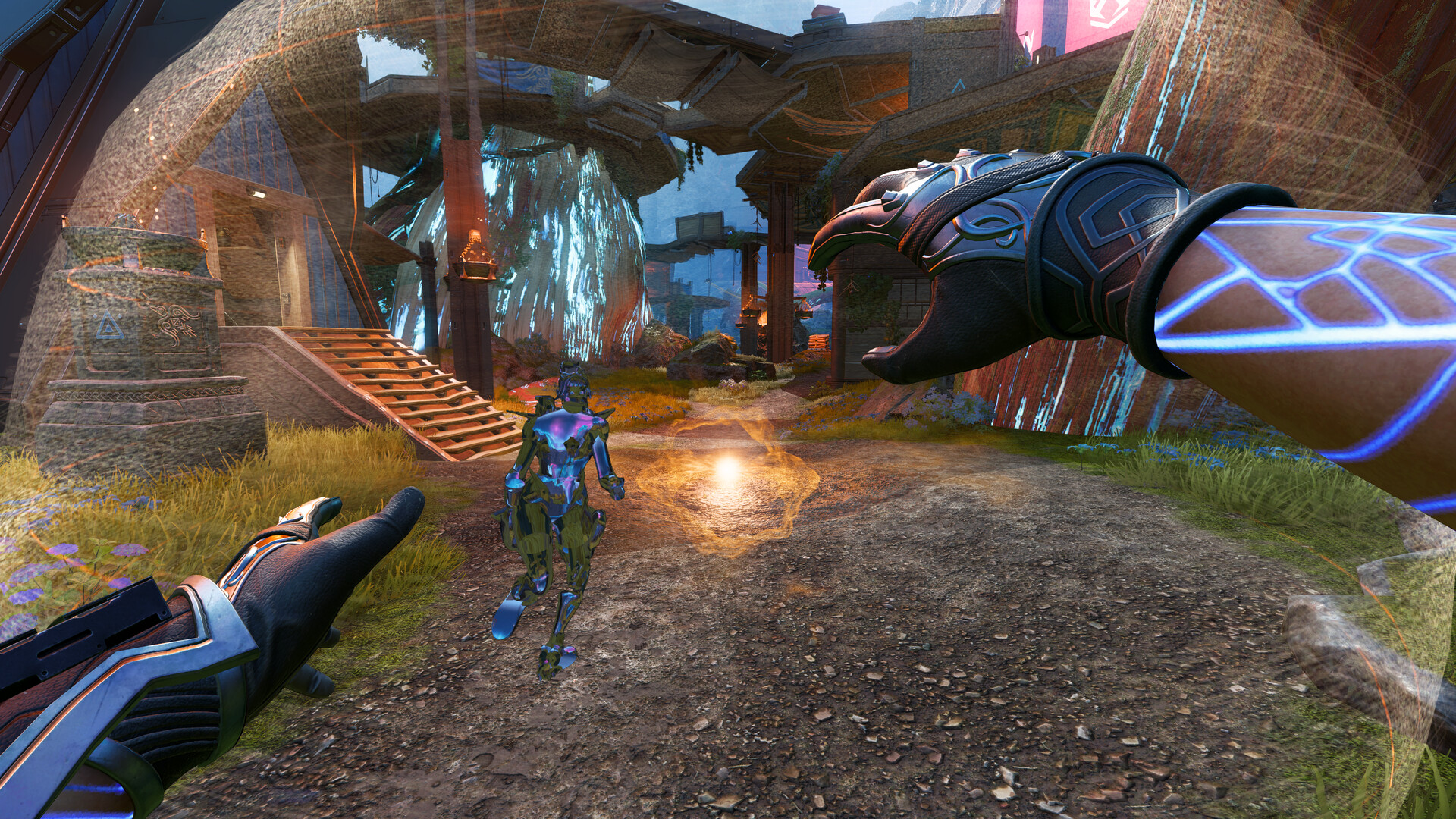
2026 Competitive Esports Target Hardware
Apex Legends features a native physics engine tick rate tied closely to framerate consistency. To maintain low input latency and max out 144Hz, 240Hz, or 360Hz esports displays, here are our recommended tier builds:
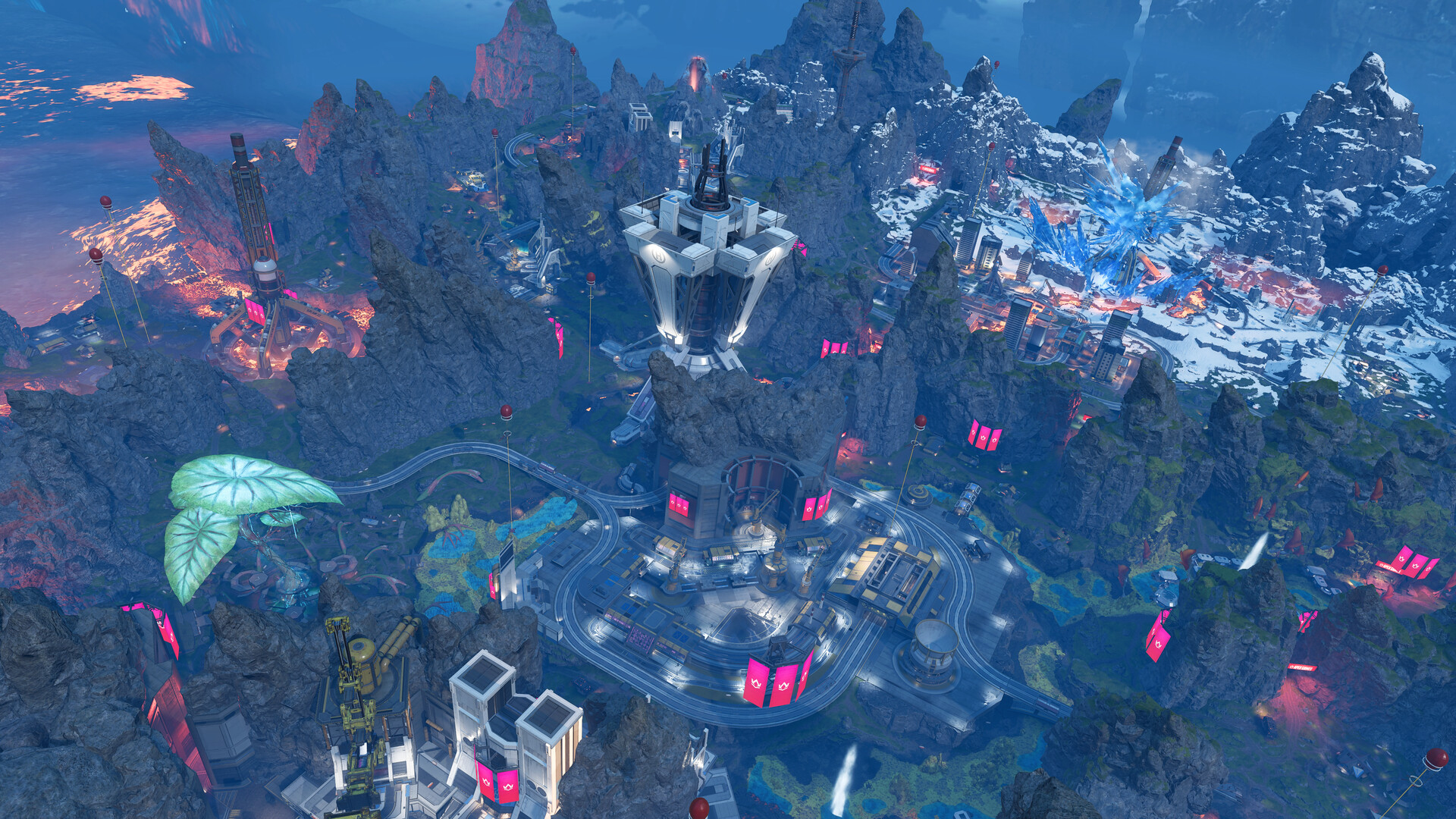
Pro Competitive Graphics Settings (ALGS Meta)
Top ALGS pros prioritize maximum visibility across high ranges and clean particle rendering during close-quarters chaos. Apply these settings:
- Display Mode: Full Screen (Guarantees lowest display latency).
- Field of View (FOV): 104 to 110 (Expands peripheral vision for spotting flankers).
- V-Sync: Disabled (Use G-Sync/FreeSync + Driver Framerate Cap instead).
- NVIDIA Reflex Low Latency: Enabled + Boost (Reduces rendering queue delay dramatically).
- Adaptive Resolution FPS Target: 0 (Prevents dynamic resolution blur during fast mouse movements).
- Anti-Aliasing: TSAA or Off (TSAA smooths edges; turn off if you prefer maximum raw pixel sharpness).
- Texture Streaming Budget: Very Low (2GB) to High (4GB) (Keeps player skins legible without saturating VRAM).
- Texture Filtering: Anisotropic 4X or 8X (Negligible FPS hit, ensures floor surfaces remain clear).
- Ambient Occlusion Quality: Disabled (Removes heavy contact shadows around corners).
- Sun Shadow Coverage & Detail: Low (Boosts visibility inside buildings and shade).
- Spot Shadow Detail: Disabled / Low (Huge frametime boost during indoor fights).
- Volumetric Lighting & Dynamic Spot Shadows: Disabled (Eliminates blinding light rays).
- Model / Detail Quality: High (Ensures enemy character silhouettes remain crisp at long ranges).
- Effects & Impact Marks: Low (Cuts massive frame dips when multiple abilities trigger at once).
Essential Launch Options & Engine Tweaks
To unlock your framerate and optimize boot performance, right-click Apex Legends in Steam → Properties → General → Launch Options:
Pro Tip: While +fps_max 0 unlocks the engine cap, capping your framerate slightly below your monitor refresh rate (e.g., 237 FPS on a 240Hz monitor) via NVIDIA Control Panel or RTSS provides the smoothest frame delivery.
Looking to Check More Battle Royales & Competitive Shooters?
Explore our comprehensive gaming benchmarks and PC hardware tier lists:
0 comments:
Post a Comment