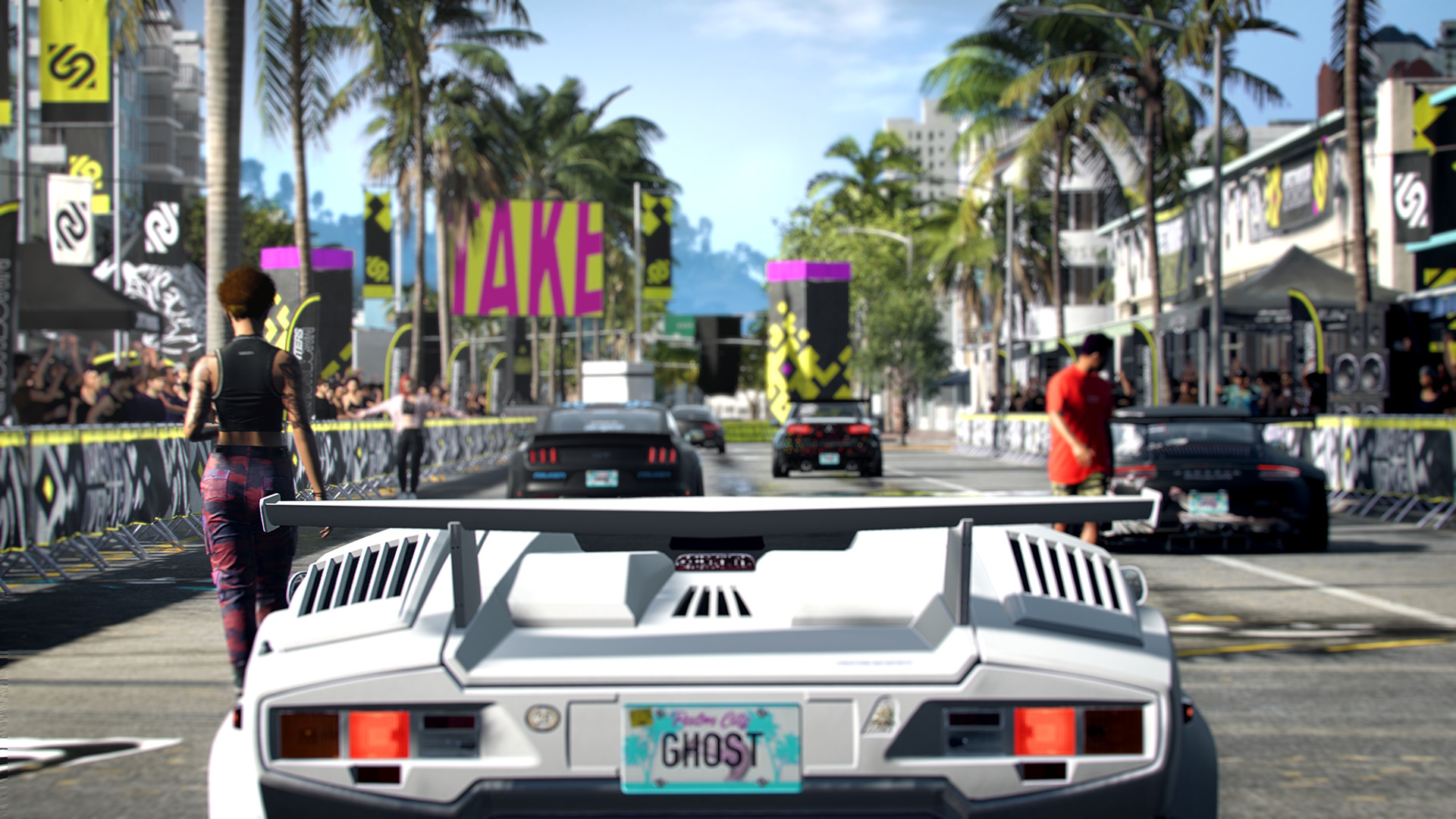
Gamers, ignite your engines and take over Palm City. Need for Speed Heat remains one of the premier arcade street racing titles of modern times, blending sanctioned daytime Speedhunters Showdown events with high-stakes illicit nighttime races under heavy police pursuit. Powered by EA's signature Frostbite 3 engine, NFS Heat delivers stunning neon reflections, wet asphalt shaders, and customizable muscle and import supercars.
To outrun the corrupt cops and dominate the streets without frame drops or micro-stutters, you'll need the right hardware setup. Below is the complete PC system requirements breakdown, Frostbite engine CPU fix, and graphics optimization guide for 2026.
⚡ Will Your Gaming Rig Burn Rubber or Overheat?
Test your processor, graphics card, and memory against NFS Heat and 500+ top titles with our instant real-time compatibility tool.
🚀 TEST YOUR RIG WITH CAN MY PC RUN IT NOW →Need for Speed Heat Official PC System Requirements
Here are the official minimum, recommended, and enhanced high-resolution benchmark targets for Need for Speed Heat:
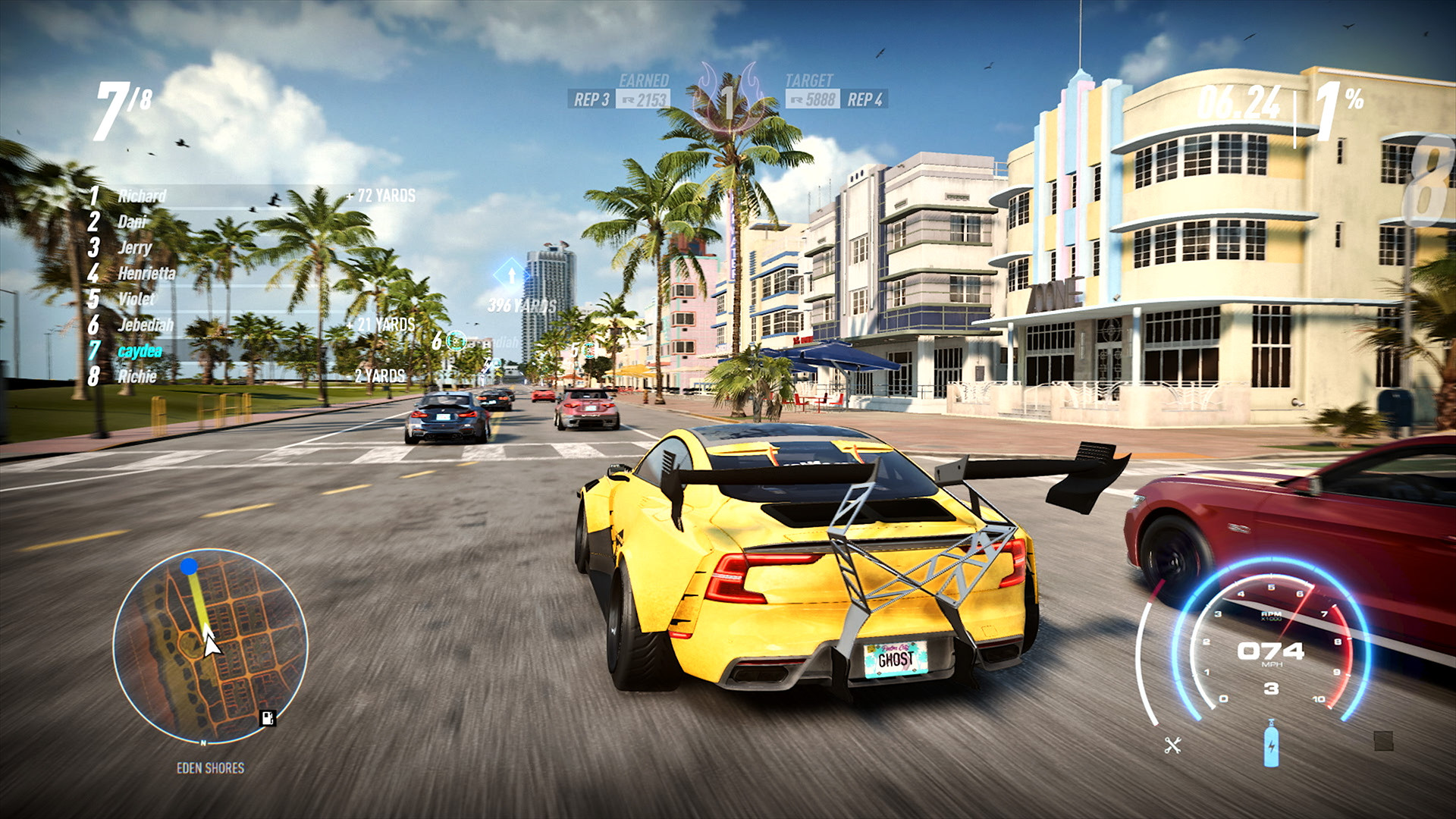
Frostbite Engine Performance & Stutter Fixes
1. Resolving the 100% CPU Usage Bug (`user.cfg`)
Need for Speed Heat runs on EA's Frostbite 3 engine, which occasionally exhibits high CPU thread scheduling issues on 4-core, 6-core, and 8-core CPUs, spiking CPU usage to 100% and causing sudden frame drops during high-speed drifts.
To eliminate this bottleneck:
- Open Notepad and create a file named
user.cfgin your NFS Heat root installation folder (whereNFSHeat.exeis located). - Add the following two lines matching your CPU's physical core and thread count (example for a 6-core / 12-thread CPU):
Thread.ProcessorCount 6
Thread.MaxProcessorCount 6
Thread.MinFreeProcessorCount 0
Thread.JobThreadPriority 0
- Save the file and launch the game. This smooths out thread distribution, stabilizes frametimes, and eliminates micro-stutters.
2. Memory & SSD Streaming
Palm City streams high-resolution vehicle textures, wet asphalt cubemaps, and procedural neon reflections continuously as your car accelerates past 200 MPH. Installing NFS Heat onto an SSD or NVMe drive is crucial to eliminate texture pop-in during sudden nitrous boosts or high-speed cop chases.
Best Graphics Settings for High FPS & Visual Clarity
- Motion Blur: Set to Off. Disabling motion blur instantly improves vehicle clarity and makes judging cornering entry angles much sharper.
- Ambient Occlusion: Set to SSAO or HBAO. Provides realistic contact shadows under cars without the performance penalty of Ultra presets.
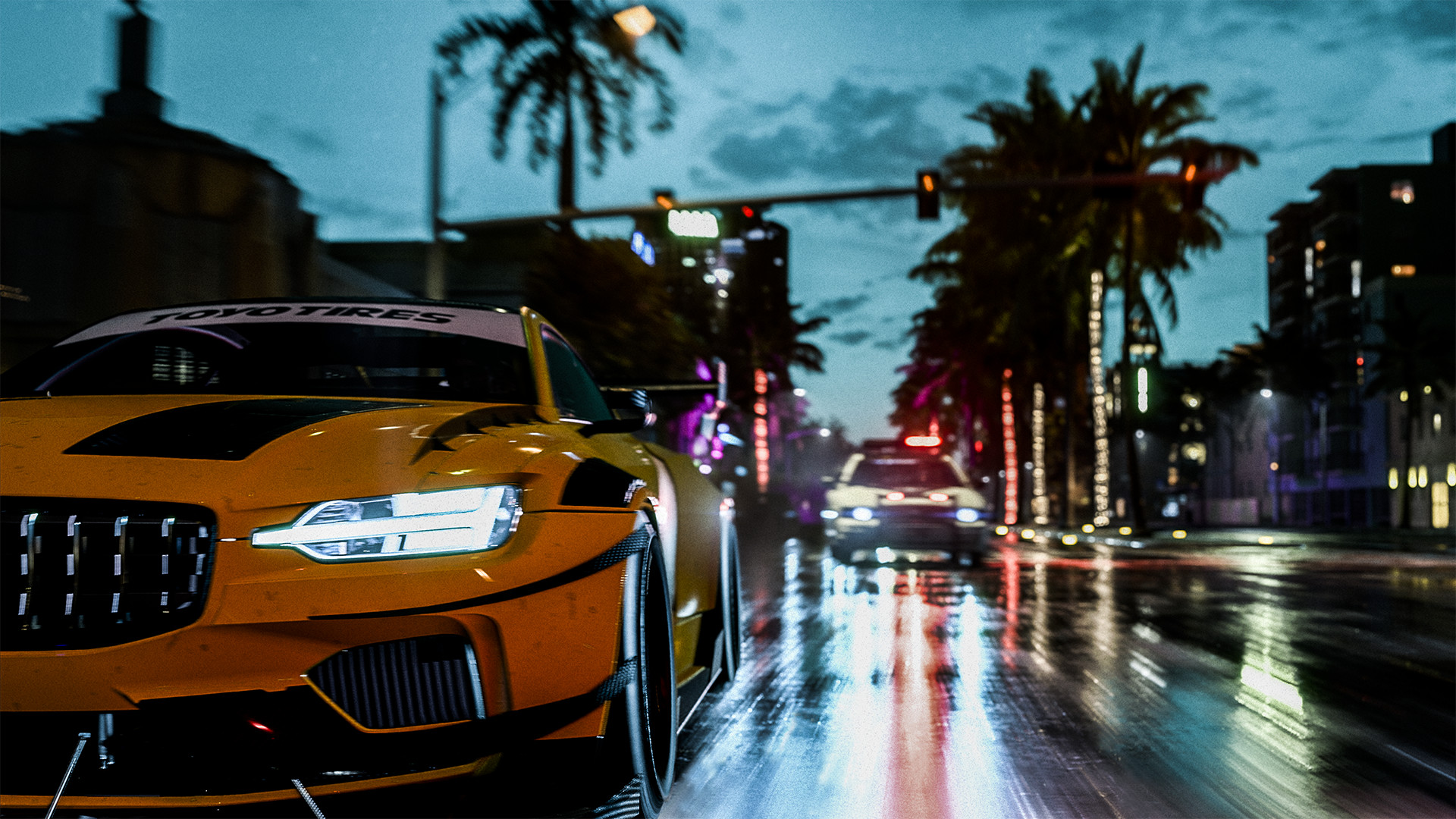
- Lighting Quality & Reflections: Set to High. Maintains stunning rain reflections and neon light bounces in nighttime races while preserving steady 60+ FPS.
- Effects Quality: Set to Medium / High. Reduces FPS dips during massive police collisions, helicopter spotlights, and spike strip explosions.
Check out our full Game Specs Directory to compare system requirements across racing and action titles, and visit the GPU Tier List & Hardware Guide to keep your gaming PC running at peak performance.
0 comments:
Post a Comment